

Mandatory fields (blocking)
Mandatory fields are marked with a blue left border on the input. If a mandatory field is empty or invalid when you click Submit:- An inline error message appears below the field
- The Submit button is blocked until the error is cleared
- Voyage Number, Location, Date/Time + GMT offset
- Latitude, Longitude (must parse as DMS)
- Vessel Condition
- Port (when In Port)
required="" attribute and styled by a mandatory CSS class.
Format errors (blocking)
Some fields enforce a format on top of being non-empty:
The form auto-formats DMS strings on tab-out where possible — type
6 1 54 N and it becomes 6 1' 54" N.
Auto-calculated fields (read-only)
These can never be wrong because you can’t type into them. Fix the inputs that feed them:Validation limits (non-blocking warnings)
The Settings panel has a Validation Limits section with collapsible groups. Each group lets the office configure a per-vessel Min and Max for parameters likeReported Speed, Bilge Water ROB, BDN Quantity, etc.
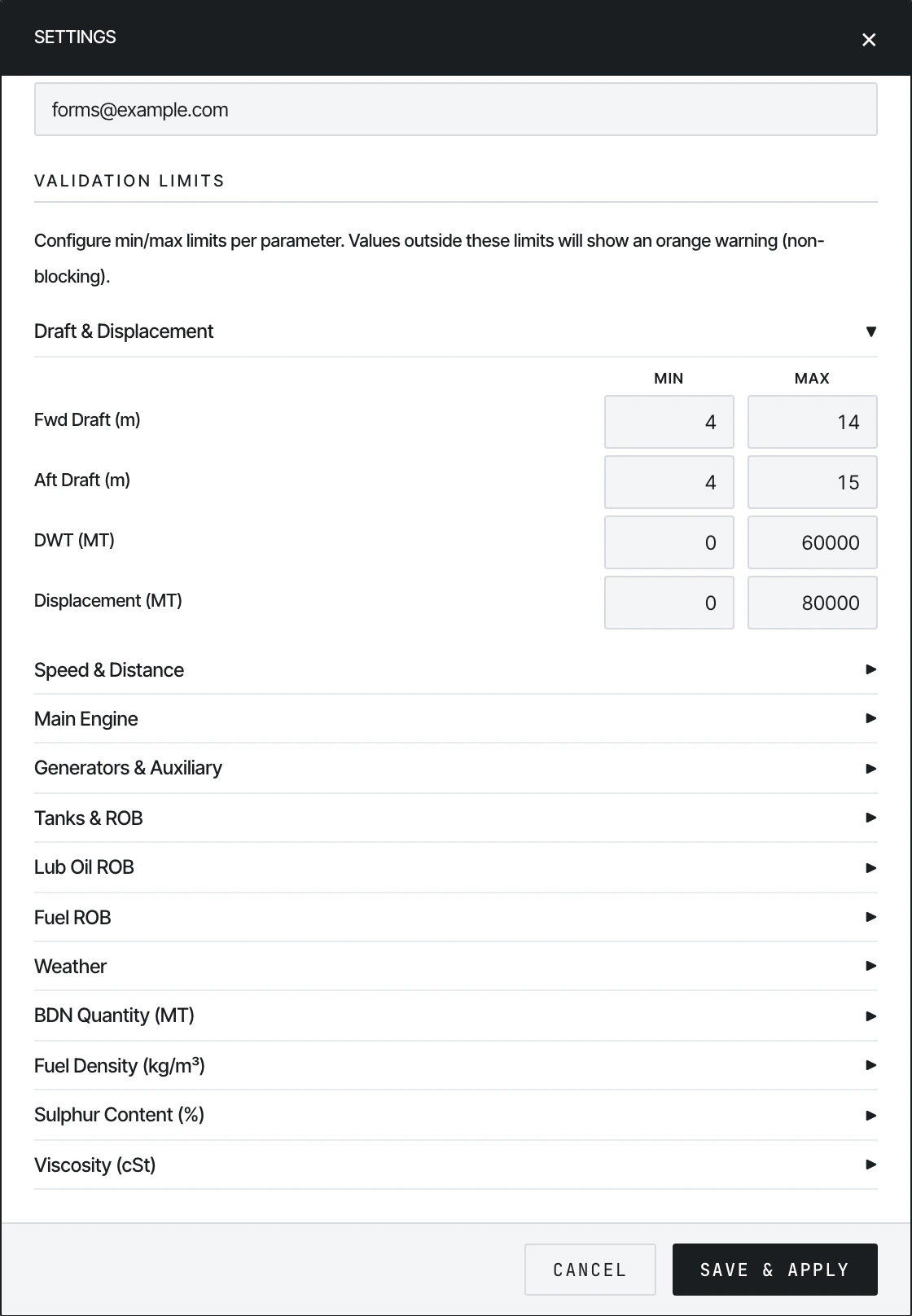
Validation Limits — per-parameter Min/Max for each vessel.
- An orange warning appears next to the input
- The form does not block Submit — the warning is informational
Configurable groups
Both Min and Max are optional — leave a field blank to disable that bound for that parameter.
Setting limits per vessel
This is a shore-side task done once per vessel:- Open the form on the office machine
- Click the gear icon → Settings
- Expand each group, type Min/Max for each parameter
- Click Save & Apply
- Click Export Configured HTML to download a vessel-specific copy with the limits baked in
Cross-field validation
A few fields validate against each other:- Steaming Hours ≤ Main Engine Hours — steaming time can’t exceed engine running time
- Engine Distance ≤ Observed Distance — slip can’t be negative
- Mean Draft = (Fwd + Aft) / 2 — auto-recomputed
- Generator KWhrs derives from Hours — typing one updates the other if Average KW is set
- Aft Draft − Fwd Draft = Trim — informational only
Error UI
- Red inline message below an input → blocking error
- Orange badge or border → non-blocking warning (Settings limit)
- Grey input → auto-calculated, read-only
- Blue left border → mandatory field
See also
- Submitting — what happens after validation passes
- Setting up history.json → Part 1 — how the office configures limits and exports the form