The click path from opening the viewer to exporting filtered submissions to Excel.
This page covers the day-to-day usage of the History Viewer. For one-time setup, see Setting up history.json.
1
Open the viewer
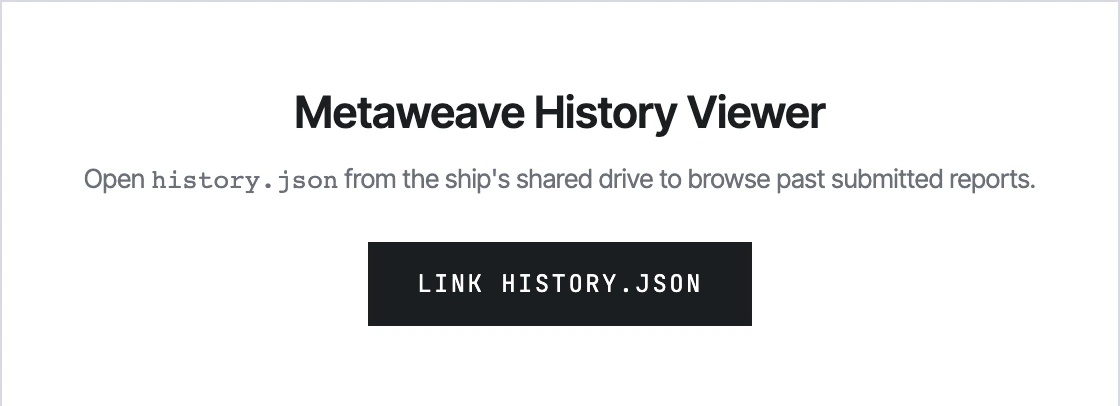
Double-click Metaweave-History-Viewer.html from the same shared-drive folder that holds the form and the history.json file. Chrome opens a landing page with a single button.
Landing page — first time you open the viewer.
On reopen the viewer auto-loads the previously linked file; you only see this landing page if no link is persisted yet (e.g. fresh browser profile, cleared site data).
2
Link history.json
Click Link history.json. The native browser file picker opens. Pick the history.json file on the shared drive. Chrome shows a permission prompt — click Allow.The viewer reads the JSON, populates the table, and persists the file handle in IndexedDB so you don’t have to re-link next time.
You can link any JSON file that follows the history schema — history.json, METAWEAVE-TEST-history.json, Sample-Vessel-history.json, etc. The viewer doesn’t hardcode a filename.
3
Pick a tab
The left sidebar has four tabs. Click whichever report family you want to browse:
Voyage Reports — Noon, Arrival, Departure
Statement of Facts — SOF submissions
Bunker Reports — bunker lifts
Month-End ROB — month-end reconciliations
Each tab loads independently and remembers its own filter state for the session.
4
Filter
The toolbar above each table has:
From / To date inputs — restrict to a date range (filters by reportDatetimeUtc)
Search — case-insensitive substring match on vessel name, IMO, voyage, port (200ms debounce)
All filters AND together. Clearing a filter shows everything again.
5
Drill into a report
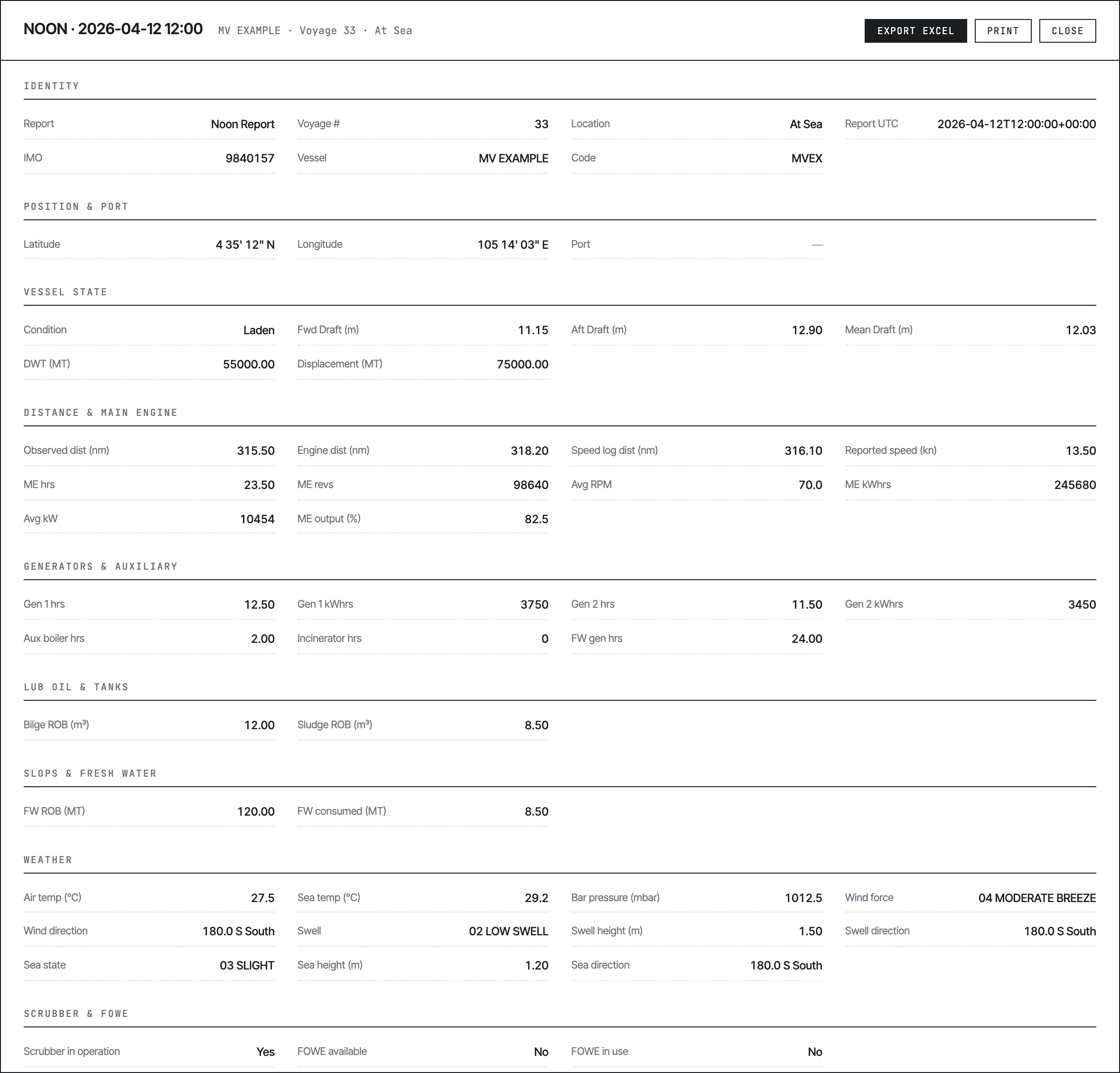
Click any row in the table. A full-screen modal opens with every field for that submission organised into seven zones, plus event cards and child tables (per-tab).
Detail modal — scalar zones at the top, event cards below.
Empty fields are skipped — only fields with actual values appear. The modal also has its own Export Excel and Print buttons for single-report exports.
6
Export filtered results
The header has two export buttons:
Export CSV — flat CSV of the current tab’s filtered rows, ~11–13 columns
Export Excel — multi-sheet SpreadsheetML .xls with one sheet per report (detailed breakdown by zone + events + child tables)
Filename pattern: metaweave-history-{tab}-{YYYY-MM-DD}.{csv|xls} — saves to your browser’s default download folder.A green toast confirms the export. If something fails, a red toast shows the error.
Every new browser session, Chrome asks “Allow this site to re-access history.json?” before the first read. Click Allow. After that, the viewer reads silently for the rest of the session.This is a Chrome security feature — you can’t grant indefinite permission to a file:// HTML, only re-grant on demand.